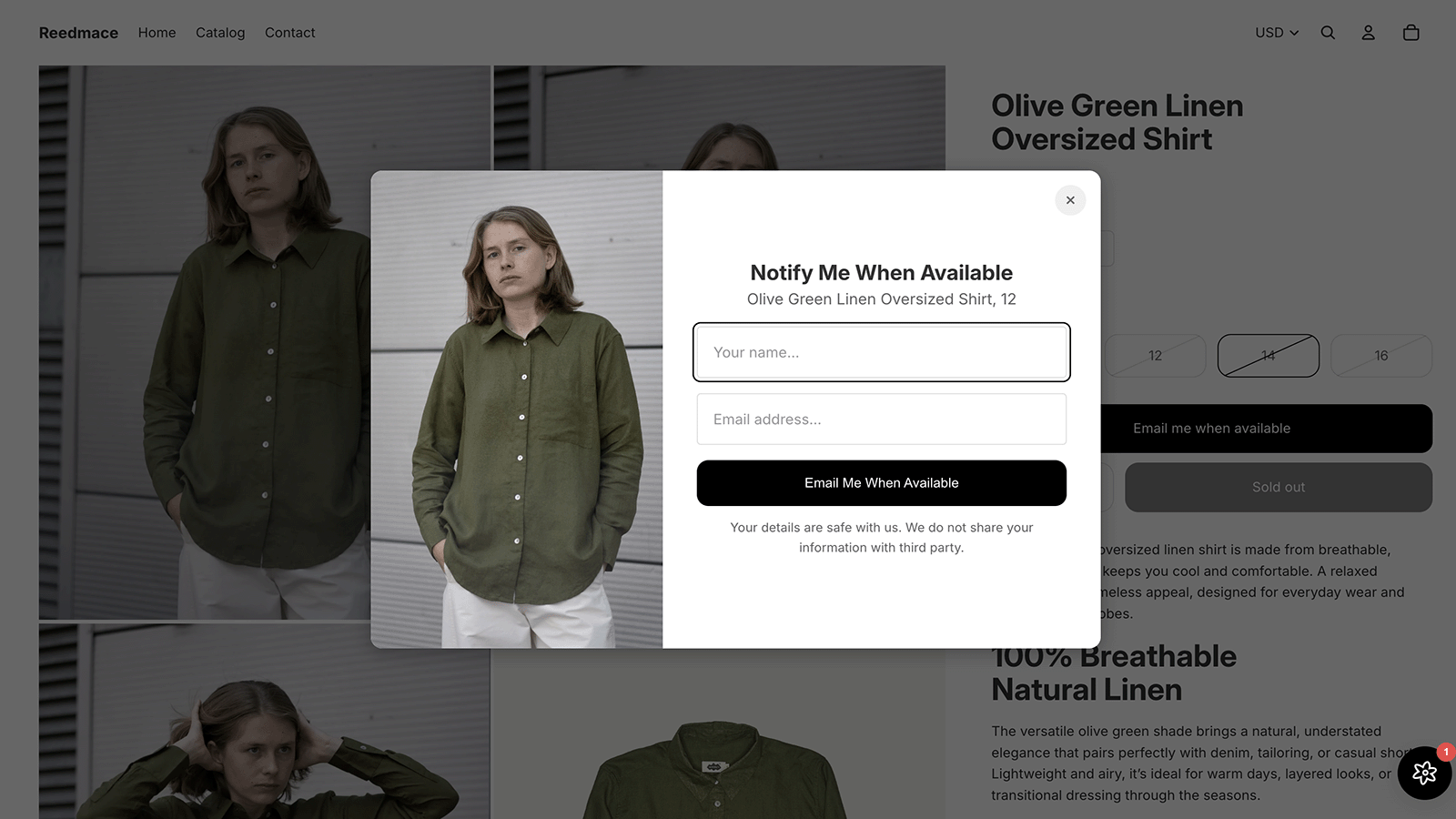
Every Shopify store eventually faces the same problem: your best products go out of stock, and all that hard‑won traffic lands on a “Sold out” button. Instead of turning those visitors away, you can treat stockouts as a way to capture demand and recover otherwise lost sales.
This post walks through a simple, practical setup using RMS Preorder | Back in Stock to turn “out of stock” pages into a source of future revenue.
Have you ever wondered -
- how to send back in stock emails with shopify?
- how to allow purchase when out of stock?
- how to send an email when a product is back in stock?
- how to allow purchase when a product is out of stock?
Why “out of stock” doesn’t have to mean “lost sale”
When a shopper sees a sold‑out product, three things can happen:
- They leave and never come back.
- They keep checking back manually (rare).
- They tell you they want it and you notify them when it’s available.
The third option is the one that recovers sales. A back‑in‑stock flow does three important jobs:
- Captures intent at the exact moment the customer is interested.
- Brings them back automatically with an email when you restock.
- Shows you which products and variants have real demand while stock is zero.
On Shopify, you can implement all of this without custom development using a notification app.
Step 1: Add a “Notify me when back in stock” button
The first step is to give customers something better than a dead “Sold out” state.
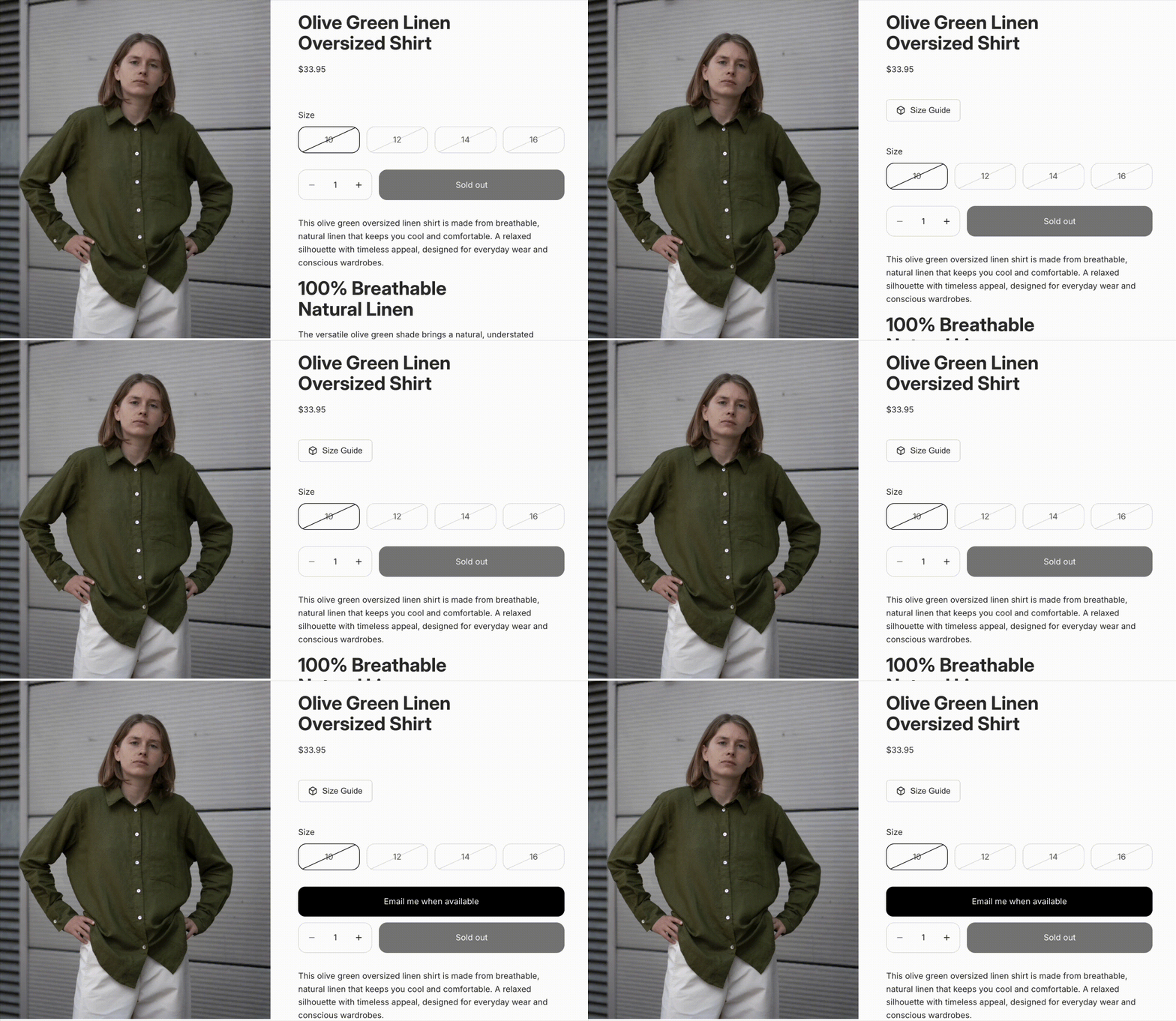
With RMS Preorder | Back in Stock, a “Notify Me” button appears automatically when a product or variant is out of stock—no theme editing or code changes needed.
Once installed:
- The app detects out‑of‑stock products and shows a notification button in the right places.
- Customers click the button and enter their email address in a simple popup.
- Their request is stored so they can be notified as soon as you restock.
Because setup is one‑click and works with your existing theme, you can go from “no capture at all” to a working signup flow in a few minutes.
Step 2: Match the button and popup to your brand
If the “Notify me” UI feels off‑brand, merchants either hide it or customers ignore it. Design matters.
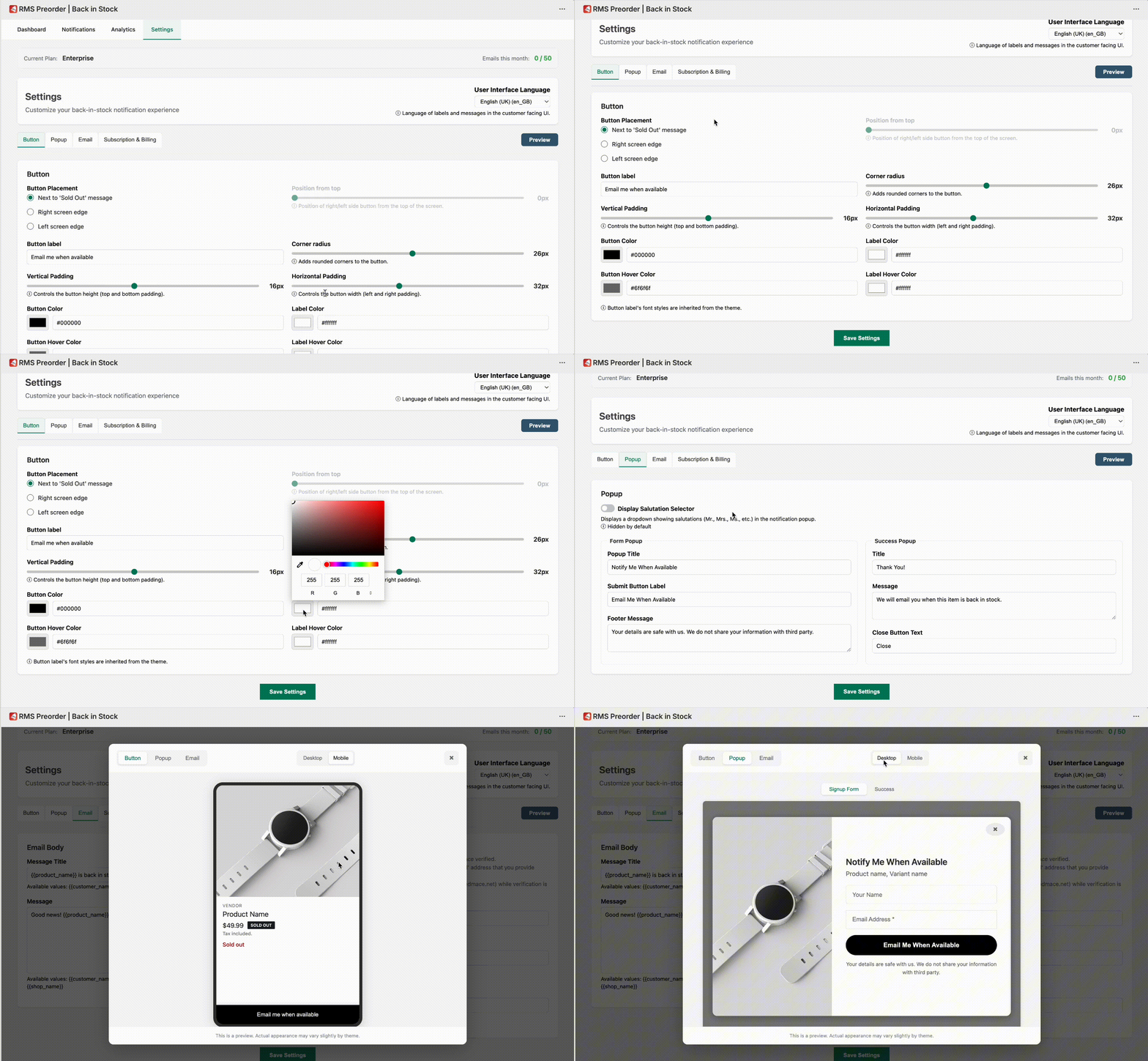
RMS Preorder | Back in Stock gives you full control over the look and wording of the entire notification flow:
- Customisable button styles (colours, text) so it fits your theme.
- Customisable popup layout, labels and field text.
- Customisable email content, so back‑in‑stock messages sound like your brand rather than a generic app.
For global or multi‑language stores, you can also localise the customer‑facing UI with multi‑language support on paid plans.
A good pattern is:
- Keep the button copy short and clear (“Notify me when available”).
- Use the popup to reassure (“No spam, we’ll email you once when this is back in stock”).
- Use your brand colours on the button and call‑to‑action in the email.
Step 3: Automate back‑in‑stock emails so you don’t forget
Capturing interest is only half the job; you also need to follow up at the right moment.
RMS Preorder | Back in Stock sends automatic emails when inventory is updated on the product or variant the customer subscribed to. You don’t have to manually remember who asked for what.
Key behaviours:
- When you restock a product, the app checks for matching subscribers.
- It sends a back‑in‑stock email to those customers (subject and body that you control).
- Higher‑tier plans support larger notification volumes, custom sender domains and longer analytics retention, so you can scale this as your store grows.
This simple automation often pays for itself: instead of hoping customers return, you push a timely reminder into their inbox.
Step 4: Use analytics to prioritise restocks and marketing
Once you’re capturing signups, you can start treating out‑of‑stock pages as a source of insights.
RMS Preorder | Back in Stock includes real‑time analytics so you can see:
- How many customers have subscribed to notifications for each product.
- Which variants are most requested.
- How many notifications you’ve sent and over what period (with retention depending on plan).
This helps you:
- Decide which products or variants to restock first.
- Identify strong demand for sizes or colours you might have under‑ordered.
- Plan marketing pushes—if you see a lot of demand for a specific item, you can coordinate a “Back in stock” campaign around it.
On higher plans, longer analytics retention makes it easier to spot patterns across seasons or drops.
Step 5: Support different stages of product availability (including preorders)
Not all “unavailable” products are the same. Some are truly out of stock; others are upcoming releases or items you can fulfil later.
RMS Preorder | Back in Stock is flexible enough to support both back‑in‑stock alerts and preorder‑style flows, so you can:
- Capture interest on products that are about to launch.
- Let customers join a waitlist for limited‑run items.
- Use demand data from signups to inform how much inventory to order.
By handling both “out of stock now” and “coming soon” scenarios, you make better use of every visit—especially for high‑demand products that tend to sell out quickly.
Step 6: Choose the right plan for your store’s stage
Because the app follows a freemium model, you can start for free and only move up when volume justifies it.
The Free plan of RMS Preorder | Back in Stock typically includes:
- A limited number of email notifications per month.
- Basic button colours.
- Basic signup popup.
- English‑only customer UI.
- Short analytics retention.
- “Powered by” branding.
As your store grows, higher‑tier plans increase limits and unlock features like:
- Higher or unlimited email notification volumes.
- Product image on signup popup.
- More languages for the customer interface.
- Longer analytics retention.
- Advanced customisation, custom sender domains, and priority support.
For a store just starting to recover out‑of‑stock sales, the free plan is usually enough to prove value before upgrading.
Putting it all together
Recovering sales from out‑of‑stock products on Shopify comes down to a simple loop:
- Show a “Notify me” or preorder button wherever you currently only show “Sold out”.
- Capture email addresses from interested customers.
- Automatically email them when you restock.
- Use the data to prioritise restocks and plan campaigns.
RMS Preorder | Back in Stock is built to let you do this without touching code, while still giving you full control over the design and messaging.
If you’re ready, you can install the app from the Shopify App Store, set it up in a few minutes, and start capturing demand on your next sold‑out product.